How to remove the location from a photo before you share it
Quick answer
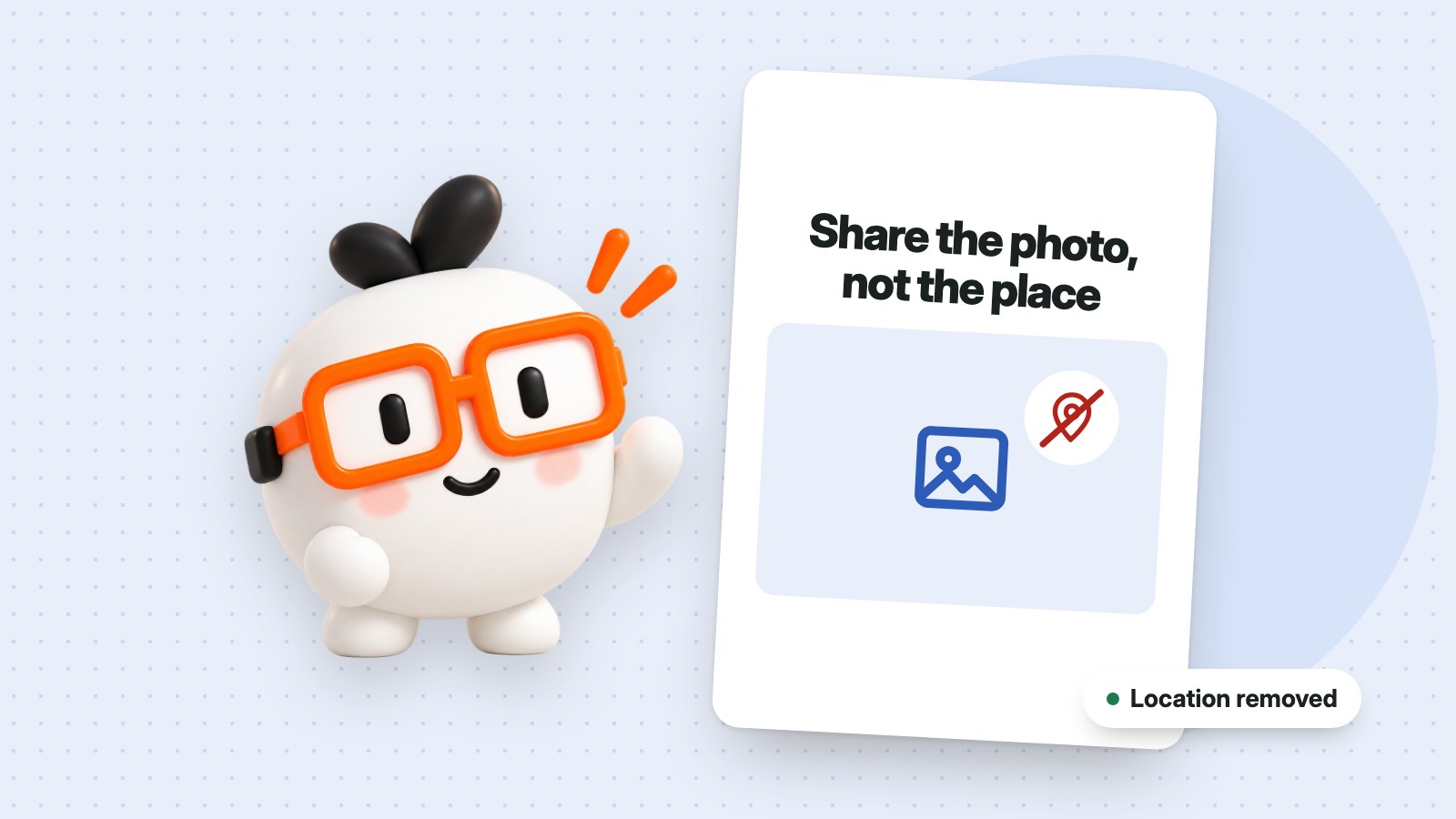
To remove location from a photo, open Remove photo location, add it, choose Remove saved location for a JPG or Remove all photo details for any other type, and download the new copy. Then share that copy, not the original.
Most phones can save the exact place a photo was taken inside the file. You can't see it in the picture, but anyone who receives the original file may be able to read it. That matters if you're selling something from home, or sharing pictures of your house or your children.
How to remove location from a photo
- Open Remove photo location and choose your photo. You can add up to 20 at a time.
- Choose what to remove. Remove saved location works on JPG files and keeps supported camera details. Remove all photo details is more thorough.
- Create your copy and download it.
- Share the new copy. Your original still has its location, so don't send that one.
Check whether a photo has a location
If you're not sure, try the photo location finder. It reads the saved GPS details in a file and tells you what's there. Screenshots and photos you've received through other apps often have none.
Stop your phone saving the location
- iPhone: go to Settings > Privacy & Security > Location Services > Camera and choose Never. To share one photo without its location, press Options at the top of the share screen and turn off Location.
- Android: open your camera app's settings and turn off the location or geotag option. The wording varies between phones.
These only affect new photos or that one share. Photos you've already taken keep their location until you remove it.
Common questions
Do social networks remove the location?
Many do strip it when you post, but they may still keep it themselves, and it isn't guaranteed everywhere. Email and file sharing usually send the original file, with its details intact. Removing it first means you don't need to rely on that.
Is my photo uploaded?
No. It's processed on your device, and your original isn't changed.
Why does Remove saved location only work on JPG?
It edits the JPG file directly so the picture isn't re-saved. For other types, choose Remove all photo details, which creates a new copy.