How to merge PDF files on your phone, without an app
Quick answer
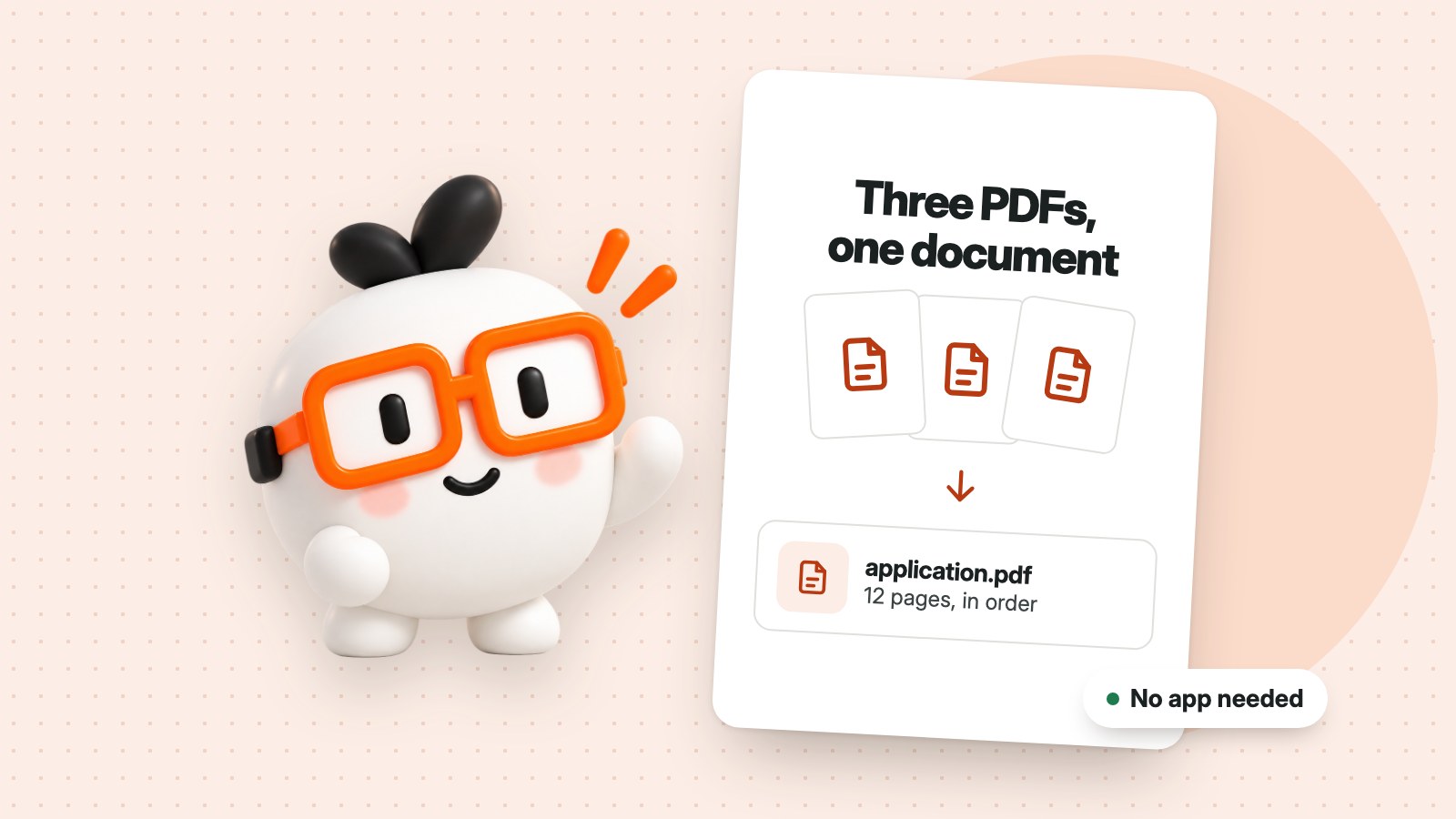
To merge PDF files on your phone, open Merge PDFs in your browser, add your PDFs in the order you want, check the page previews and press Create PDF. There's nothing to install, and your files stay on your phone.
You've been asked for one document, and what you have is three: a form, a scan and a certificate. You don't need a computer or another app to combine them, because your phone's browser can do it.
How to merge PDF files on your phone
- Open Merge PDFs in Safari, Chrome or your usual browser.
- Tap to choose your files. You'll usually find them in Files on an iPhone, or Downloads on Android.
- Check the page previews. Drag a page by its handle or use the arrow buttons to move it, and untick any page you don't want.
- Press Create PDF, then download your new file.
Before you merge
- Password-protected PDF? Remove its password first, using the password you know.
- Have photos of documents? Turn them into a PDF with Images to PDF, then merge that with your other files.
- Sideways page? You can rotate pages in the same review step.
You can combine up to 200 pages, with up to 50 MB per file and 100 MB in total. Very long documents can be slower on an older phone, so a computer may be easier for those.
Common questions
Are my files uploaded?
No. Your PDFs are processed on your phone, which makes this a good fit for bank statements, IDs and other private documents.
Where does the new PDF go?
It goes wherever your browser saves downloads, usually Files on an iPhone and Downloads on Android.
Can I take out one page instead?
Yes. Untick it in the review step, or use Extract PDF pages to keep only the pages you need.
Will it change my original files?
No. You get a new file, and your originals stay as they were.